Paramètres de la carte en plein écran
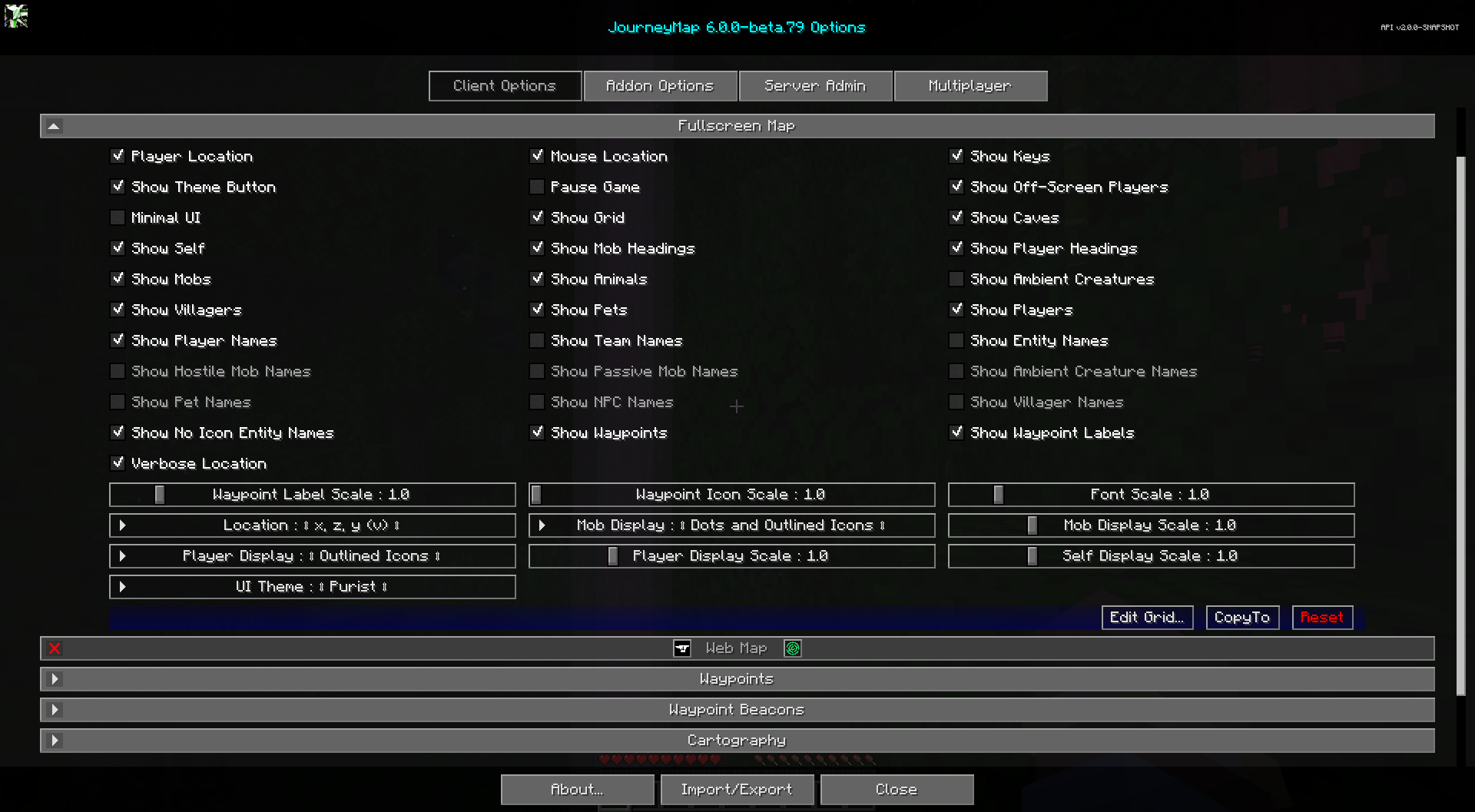
La carte plein écran offre une grande vue déroulante de l’intégralité de votre carte. Tout comme les préréglages de la mini-carte, cela peut être personnalisé à beaucoup.
Pour ouvrir la carte plein écran, appuyez sur la touche de carte plein écran (la touche J par défaut).
Note
Une poignée des options suivantes sont également disponibles sous forme de boutons sur la vue de la carte en plein écran elle-même. Pour plus d'informations à ce sujet, veuillez consulter la page de carte en plein écran.
Toggles
L'état par défaut de chaque bascule est indiqué dans le tableau ci-dessous. Les bascules en gras sont activées par défaut.
| Basculer | Descriptif |
|---|---|
| Emplacement de la souris | Afficher l'emplacement du bloc de la souris au-dessus des boutons |
| Pause du jeu | Met le jeu en pause pendant que la carte en plein écran est ouverte. N'affecte que les mondes solo |
| Emplacement du joueur | Afficher l'emplacement du joueur sous les boutons du haut |
| Afficher les animaux | Les foules passives à proximité sont affichées sur la carte |
| Afficher les créatures ambiantes | Les créatures ambiantes à proximité, comme les chauves-souris, sont affichées sur la carte |
| Afficher les grottes | Passer à la carte de la grotte lorsque vous êtes sous terre ou à l'intérieur |
| Afficher les noms d'entités | Afficher les noms des animaux de compagnie, des PNJ, etc. sur la carte |
| Afficher la grille | Afficher une grille de limites de morceaux sur la carte |
| Afficher les noms des foules hostiles | Afficher les noms des foules hostiles sur la carte |
| Afficher les clés | Afficher les raccourcis clavier et les descriptions |
| Afficher les titres de la foule | Montrer dans quelle direction les foules regardent |
| Afficher les monstres | Les foules hostiles à proximité sont affichées sur la carte |
| Afficher les noms des PNJ | Afficher les noms des PNJ sur la carte |
| Afficher les noms d'entité sans icône | Afficher les noms des entités qui n'ont pas d'icône. Ceci remplace tous les autres champs de nom d'exposition |
| Afficher les joueurs hors écran | Les joueurs visibles hors écran verront leur icône affichée sur le bord de la carte |
| Afficher les noms des créatures ambiantes | Afficher les noms des créatures ambiantes sur la carte |
| Afficher les noms des foules passives | Afficher les noms des foules passives sur la carte |
| Afficher les animaux | Les animaux à proximité sont affichés sur la carte |
| Afficher les titres des joueurs | Montrer dans quelle direction les autres joueurs regardent |
| Afficher les noms des joueurs | Afficher les noms des joueurs sur la carte |
| Afficher les joueurs | Les joueurs à proximité sont affichés sur la carte |
| Montrez-vous | L'icône de votre localisateur est affichée sur la carte |
| Afficher les noms des équipes | Afficher les noms des équipes sur la carte |
| Afficher le bouton Thème | Affiche le bouton de sélection de thème sur la carte en plein écran |
| Afficher les noms des villageois | Afficher les noms des villageois sur la carte |
| Afficher les villageois | Les villageois à proximité sont indiqués sur la carte |
| Afficher les étiquettes des points de cheminement | Afficher les étiquettes des waypoints sur la carte |
| Afficher les points de cheminement | Les waypoints à proximité sont affichés sur la carte |
| Emplacement détaillé | L'emplacement affiche les noms de coordonnées (x, y, z) avec les chiffres |
Minimal UI
Minimal UI est une nouvelle bascule en plein écran uniquement dans JourneyMap 6.0. Il est désactivé par défaut. Lorsqu'il est activé, il masque un certain nombre de boutons pour rendre l'interface utilisateur de la carte plein écran un peu plus minimale.
Autres paramètres
L'option par défaut pour chaque paramètre ci-dessous est marquée d'un texte gras.
| Paramètre | Options | Descriptif |
|---|---|---|
| Échelle de police |
|
L'échelle de police pour les étiquettes et le texte |
| Localisation |
|
Format d'affichage des coordonnées de localisation. 'v' signifie morceau vertical |
| Affichage de la foule |
|
Afficher les monstres sous forme d'icônes ou de points colorés |
| Échelle d’affichage de la foule |
|
L'échelle des icônes et des points Mob |
| Affichage du joueur |
|
Afficher les joueurs sous forme d'icônes ou de points colorés |
| Échelle d'affichage du joueur |
|
L'échelle des icônes et des points du joueur |
| Balance d'affichage automatique |
|
L'échelle de l'icône de soi |
| Échelle des icônes de point de cheminement |
|
L'échelle des icônes de waypoint sur la carte |
| Échelle d'étiquette de point de cheminement |
|
L'échelle de police pour les étiquettes de waypoint sur la carte |