Palette de couleurs
La palette de couleurs est un éditeur côté client pour les couleurs utilisées par JourneyMap. lors du rendu de la carte. Vous pouvez recolorer des blocs individuels, des teintes de biome (feuillage, herbe, eau, brouillard) et les couleurs des points et des étiquettes utilisées pour les foules et les joueurs sur la carte.
Ouverture de la palette de couleurs
Ouvrez la carte en plein écran (touche par défaut J) et cliquez sur la Palette de couleurs
dans la barre d'action.
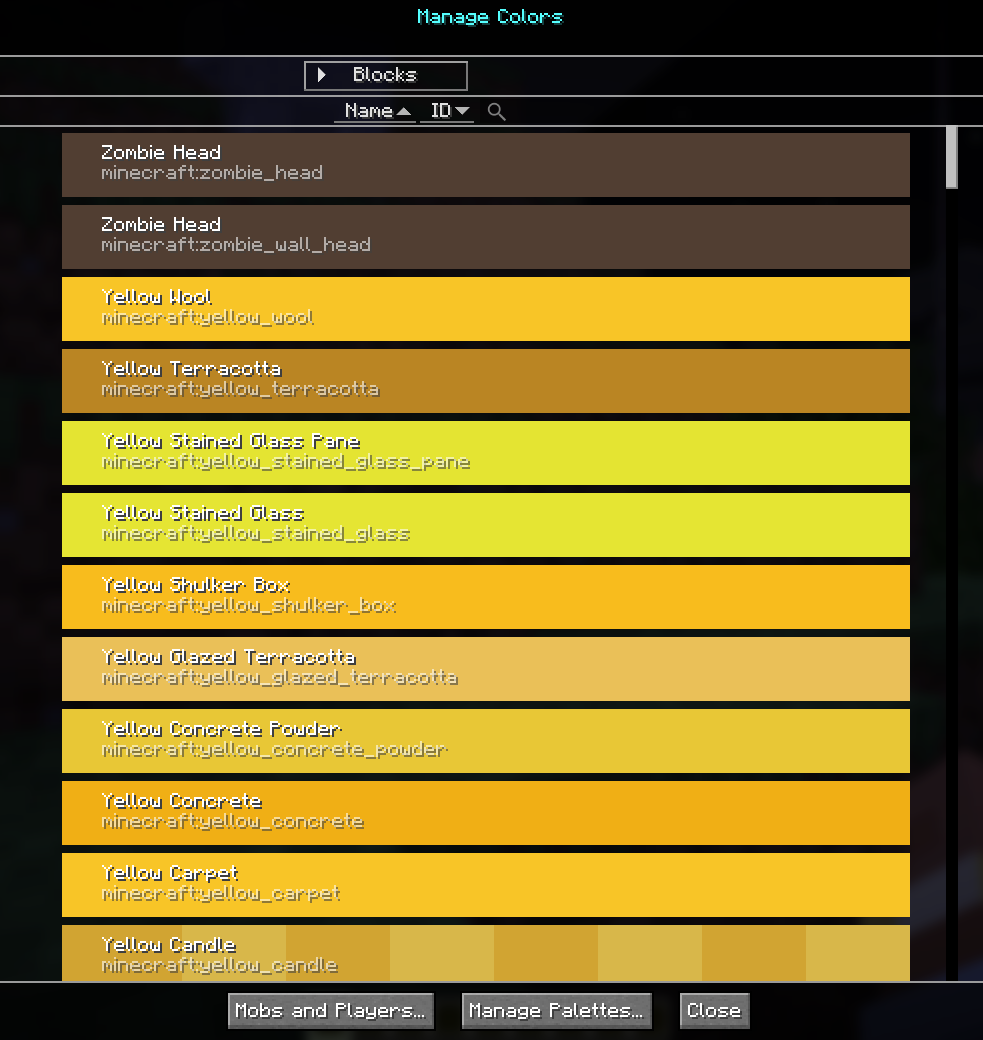
Cela ouvre l'écran Gérer les couleurs. À partir de là, le Gérer Le bouton Palettes (en bas de l'écran) ouvre la palette de niveau supérieur écran de gestion décrit dans la section Gestion des palettes section ci-dessous.
Manage Colors
L'écran Gérer les couleurs répertorie chaque couleur de bloc, de biome ou d'entité le moteur de rendu de carte peut utiliser. Vous pouvez filtrer la liste, modifier des couleurs individuelles, et modifiez en masse les entrées affichées.
Modes
| Mode | Spectacles |
|---|---|
| Blocs | Chaque bloc (et état de bloc) JourneyMap a une couleur pour laquelle. Les couleurs des blocs déterminent le rendu de la carte de base. |
| Biomes | Teintes par biome utilisées par les superpositions de feuillage, d'herbe, d'eau et de brouillard. |
Mobs et joueurs
Le bouton Mobs and Players... ouvre un éditeur ciblé pour le entrées non bloquantes : Hostile Dot/Label, Passive Dot/Label, Pet Dot/Label, Player Dot/Label, Villager Dot/Label et l’auto-flèche. Utilisez ceci pour modifiez les couleurs utilisées pour les points d'entité et les étiquettes de nom sur la carte.
Filters
- Recherche - filtre de texte libre sur la liste visible.
- Domaine - filtrez par ID de mod ou choisissez
All,Resource PacksouModspour élargir ou réduire la portée. - Palette - choisissez la palette à modifier (voir Étendues de domaine ci-dessous).
- Trier - trier par nom ou ID, croissant ou décroissant.
Modification d'une seule entrée
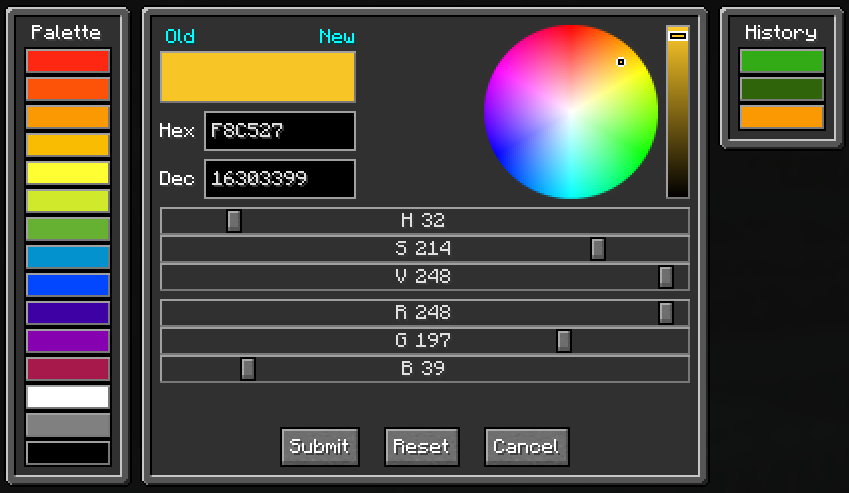
Cliquez sur Modifier à côté de n'importe quelle entrée pour ouvrir le sélecteur de couleurs correspondant. entrée. Pour les blocs, le sélecteur vous permet de définir la couleur de chaque bloc état. Pour les biomes, vous définissez les teintes du feuillage, de l'herbe, de l'eau et du brouillard. indépendamment. Enregistrez à nouveau dans la palette Global ou Monde.
Domain Scopes
JourneyMap stocke jusqu'à deux palettes :
| Palettes | Portée |
|---|---|
| Mondial | Appliqué dans tous les mondes que vous ouvrez avec JourneyMap. |
| Monde | Appliqué uniquement au monde solo ou à la sauvegarde du serveur actuellement chargé. La palette Monde remplace Global où les deux définissent une couleur. |
La portée active est affichée dans la liste déroulante de la palette. Enregistrer une modification dans la palette Monde n'affecte que le monde actuel ; enregistrer dans Global l'applique partout.
Managing Palettes
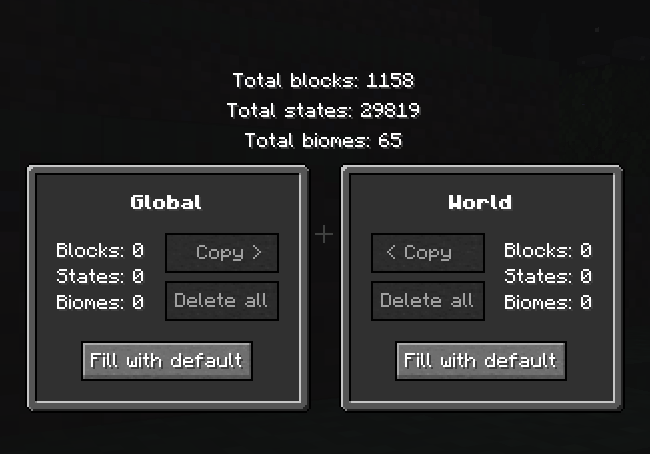
L'écran Gérer les palettes (accessible via le bouton sur Gérer Couleurs) affiche les palettes Global et Monde côte à côte, avec le le nombre total de blocs/états/biomes est défini par chacun.
Actions per palette
| Actions | Effet |
|---|---|
| Supprimer tout | Supprime toutes les couleurs de cette palette (demande une confirmation). |
| Remplir avec la valeur par défaut | Copie toutes les couleurs manquantes de la palette par défaut JourneyMap dans cette palette. |
| Copier > | Copiez de Global vers World, avec un choix de sous-mode (tout et remplacer, existant uniquement, non existant uniquement). |
| < Copier | Copiez du monde vers le global, mêmes choix de sous-mode. |
Copy modes
Lors de la copie entre palettes, vous choisissez la façon dont les entrées existantes sont traité :
- Copier tout et remplacer les existants - écraser chaque entrée du destination avec la valeur de la source.
- Copier et remplacer uniquement ceux existants - mettre à jour les entrées de destination dont la clé existe déjà ; n'ajoutez pas de nouvelles clés.
- Copier uniquement celles qui n'existent pas - remplissez uniquement les clés manquantes ; jamais modifier une entrée de destination qui a déjà une valeur.
Storage
Les palettes sont enregistrées sur le disque sous forme de fichiers de palette de couleurs JourneyMap. Le La palette mondiale cohabite avec les données JourneyMap du monde ; le Mondial La palette se trouve dans le dossier de configuration JourneyMap de niveau supérieur. Si une palette le fichier est corrompu, JourneyMap fait apparaître une erreur plutôt que silencieusement jeter vos couleurs.