Settings
JourneyMap provides more than a few configuration options, allowing you to customize the behaviour and appearance of many different aspects of the mod. All of these settings are made available through the settings manager.
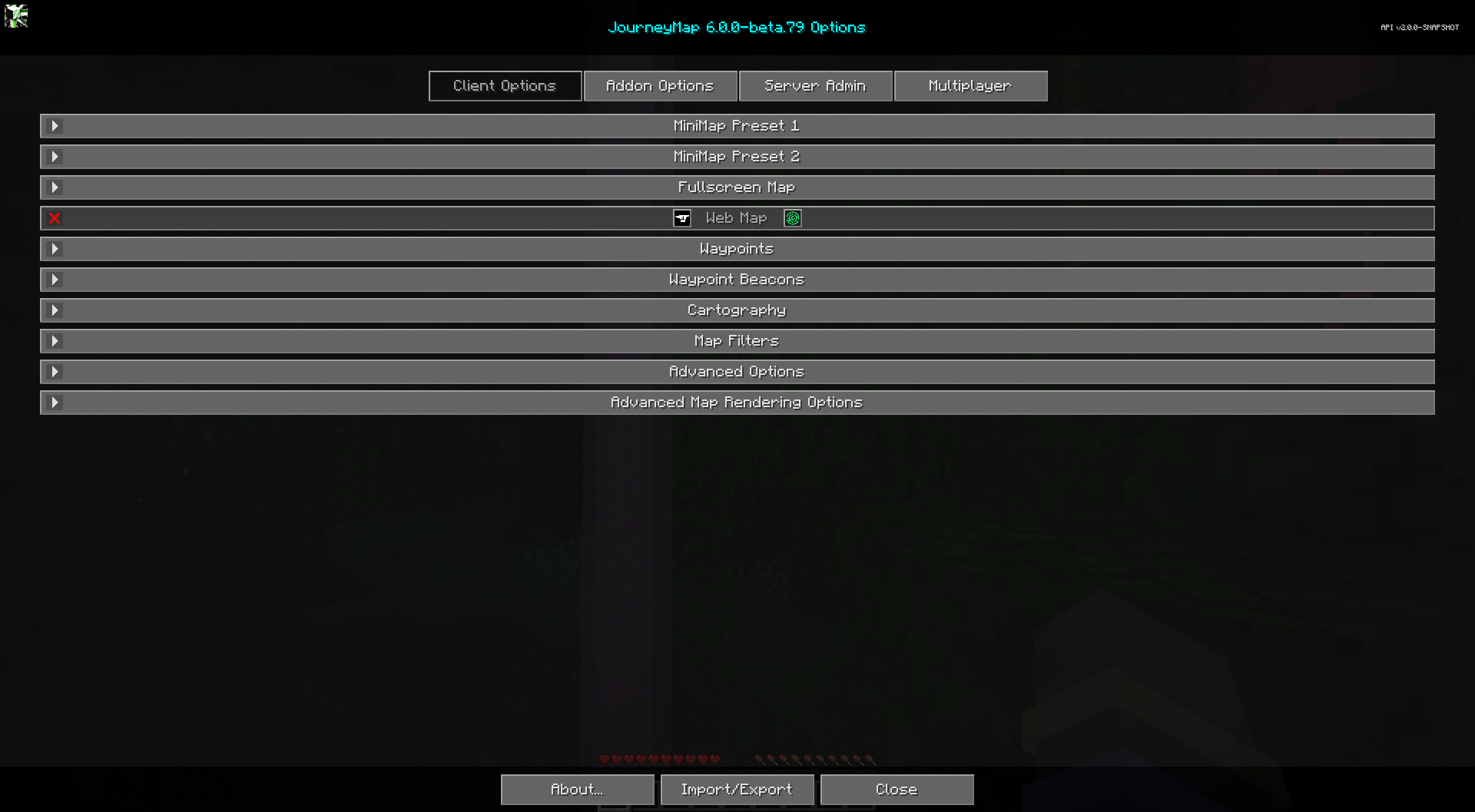
To get to the settings manager, open the full-screen map and click the settings button at the bottom, or press the O key. Each entry in the list represents a specific category of settings - click on it to expand and see the settings within.
Note
Each category has a Reset button. Please note that pressing this button will reset the settings in that category to the default settings bundled with JourneyMap, instead of simply discarding your changes.
Import / Export
The settings manager has an Import/Export button. It opens the Import/Export JourneyMap Data dialog, which lets you back up and restore JourneyMap's data for a world: the generated map tiles and waypoints.
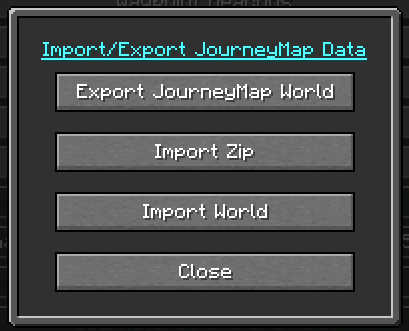
Exporting
Choose Export JourneyMap World to back up the current world. Select which folders (for example the individual dimensions) to include, then use Create Export to write them out to a zip file.
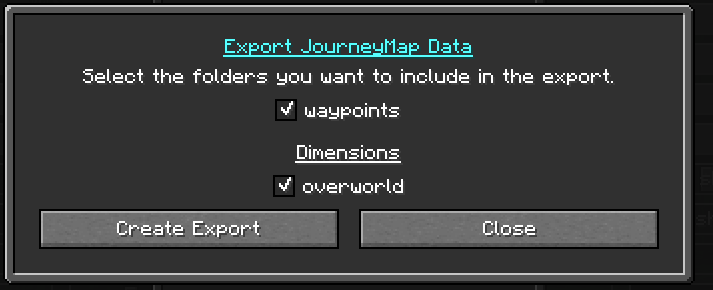
Importing
To restore a backup, choose either Import Zip to import from a zip file or Import World to import from a folder. Select the source, choose which folders to bring in, and confirm with Import Selected Folders.
This is handy for moving your explored map and waypoints between computers, or for restoring them after reinstalling.
Open Folder
The settings manager also has an Open Folder button, which opens
JourneyMap's folder in your system file browser. This is the quickest
way to reach journeymap.log, the config folder, or your waypoint
files when backing them up or troubleshooting.