Basic Usage
Basic Usage
Once you have JourneyMap installed, all you need to do is join a server or load up a single-player world.
For the most part, JourneyMap works right out of the box. All you need to do to start mapping your world is to begin exploring it! The area around you will be mapped automatically as you travel, and will be visible in each of the three types of map that JourneyMap supports.
Key Mappings
The following key mappings are available by default when you are playing on a world or multiplayer server.
- J - Show or hide the full-screen map
- Ctrl+J - Show or hide the minimap. On Fabric this is M instead, because Fabric does not support modifier keys for keybinds
- = / - - Zoom the minimap in and out
- [ - Cycle the map type shown in the minimap
- \ - Switch between minimap presets
- B - Create a waypoint where you are standing
- N - Open the waypoint manager
- G - Toggle entity name labels
JourneyMap also has keybinds for toggling waypoint rendering (all waypoints, in-world only, or on-map only). These are unbound by default - assign them in Minecraft's Controls if you want them.
All keys specified in the documentation can be customized in Minecraft's own settings. Just open the menu (by default, with the Esc key), click on Options and then Controls, and you will see two new categories for all of JourneyMap's keys.
Markers
All map types contain markers. These markers denote various pieces of information - such as the position of an entity or a waypoint on the map.
| Icon | Description |
|---|---|
 |
Your position on the map. Note: This icon has a white border ingame. |
 |
A waypoint. The colour can be set in the waypoint manager. |
 |
A death Waypoint |
| Icon | Description |
|---|---|
 |
A marker denoting an entity on the map. The colour of the marker denotes the type of entity. |
 |
An entity below you. |
 |
An entity above you. |
| Icon | Description |
|---|---|
 |
A neutral entity, like an animal. |
 |
A villager. |
 |
Another player. |
 |
A hostile entity, like a monster. |
Markers and their display can be customized in the settings manager.
The Minimap
By default, the minimap will be displayed in the top-right corner of your screen.
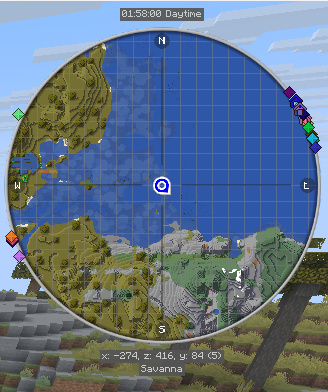
This is your minimap. By default, it displays the area around your character, as well as some basic information and the positions of your character, other players, animals and monsters.
The minimap can be zoomed in and out at any time by pressing either of the zoom keys (by default, the = and - keys).
The text above and below the minimap is shown in info slots. There are four of them. By default they show:
- Slot 1: nothing (blank)
- Slot 2: the in-game time
- Slot 3: your coordinates
- Slot 4: the biome you are in
The minimap and its info slots may be customized in the settings manager.
The Full-Screen Map
By pressing the full-screen map key (by default, the J key), you can open the full-screen map.
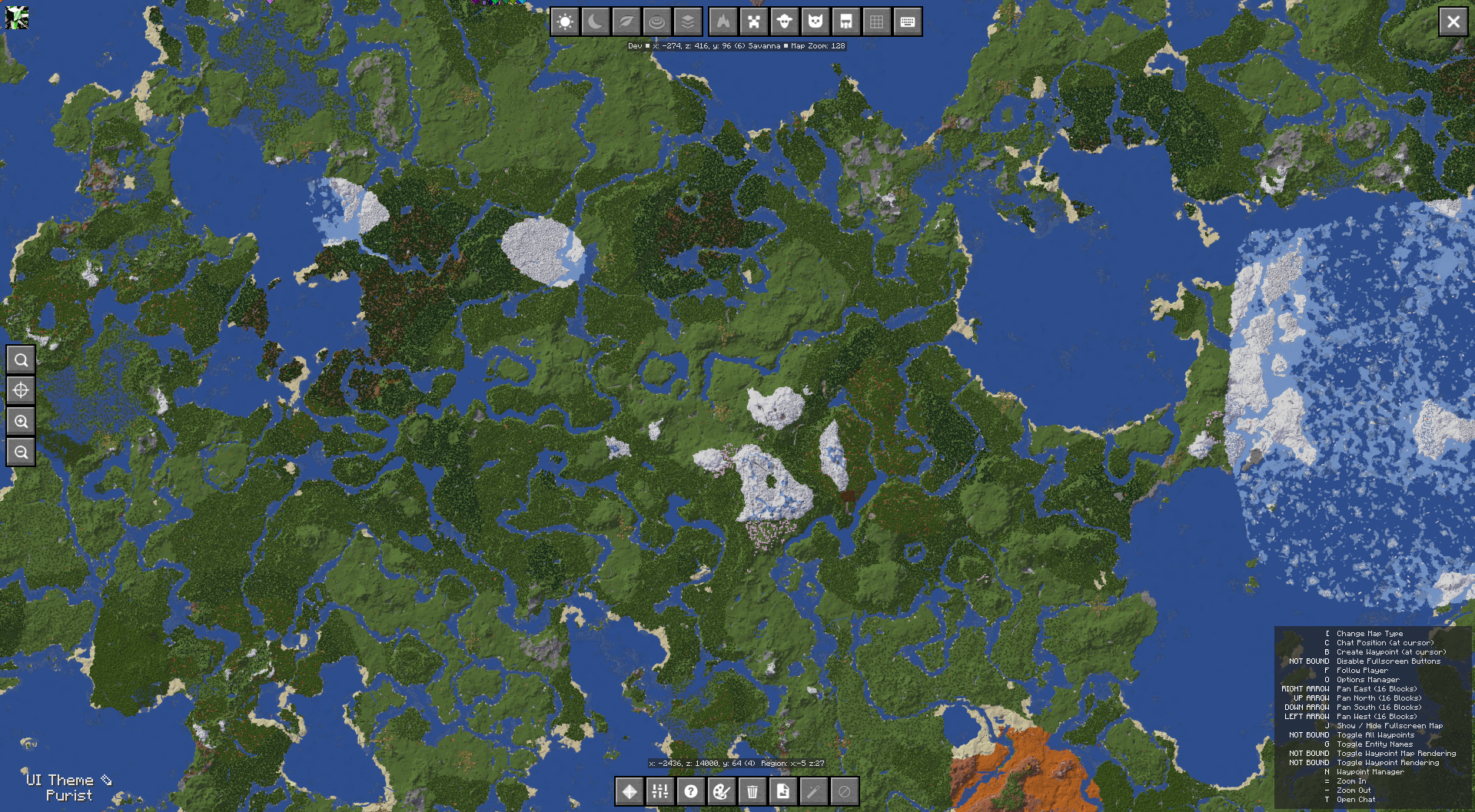
This map gives you a scrollable view of all the areas of the map you have explored so far, displayed as it was when you discovered them. It also provides access to JourneyMap's Settings and a number of map display options.
For more information on the full-screen map, please see the full-screen map page.
The Webmap
The webmap lets you view and explore your map in a web browser, including from another device such as a phone or tablet, while the game is running. As of JourneyMap 6.0 the webmap is a separate addon mod.
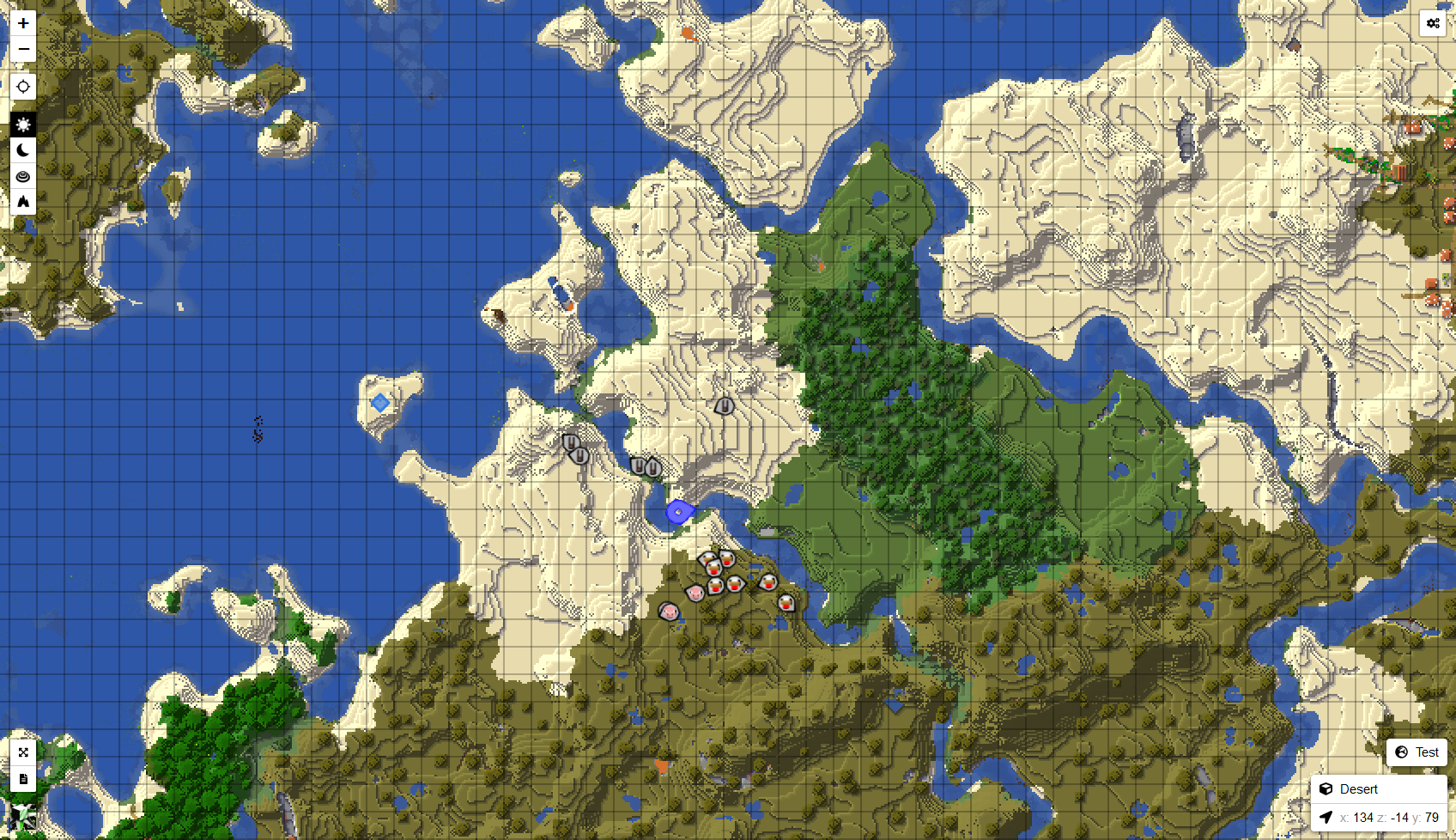
See the Webmap section for how to install and use it.