Minimap Position Settings
Translation needed for 6.0
This page was updated for JourneyMap 6.0 in English. Translation is pending; the content shown is the English source. See Contributing to help translate the docs.
JourneyMap allows you configure the placement for both the effect icons and the actual minimap. This allows you as a user to move the minimap and the effect icons wherever you want on the screen
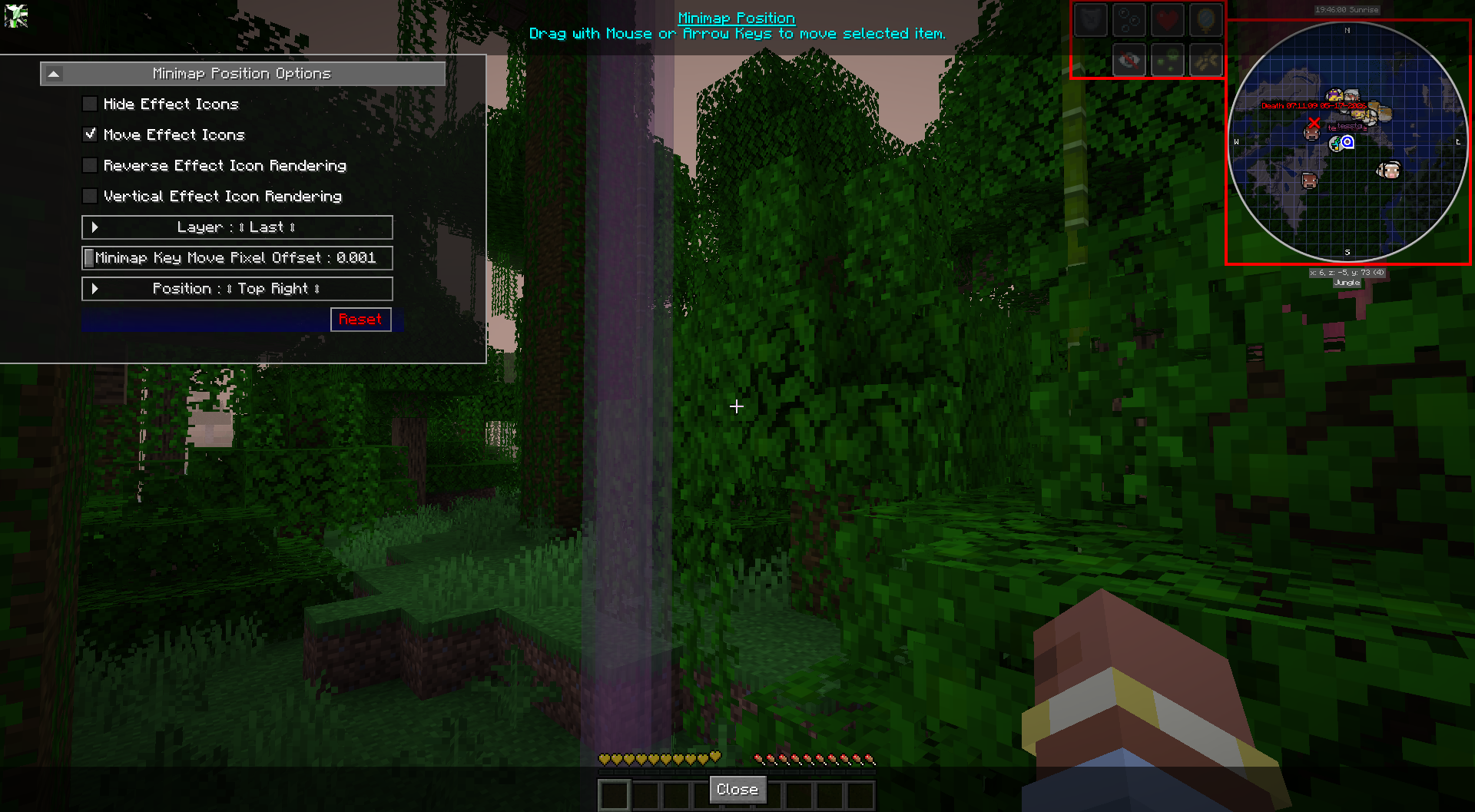
Toggles
The bold toggle settings below are enabled by default.
| Toggle | Description |
|---|---|
| Move Effect Icons | Enables moving the potion effects away from the minimap. |
| Hide Effect Icons | Hides effect icons. |
| Reverse Effect Icon Rendering | Reversed Rendering of Icons. Vertical bottom to top, non Vertical left to right. |
| Vertical Effect Icon Rendering | Vertical Rendering of the icons first from top to bottom. |
Other Settings
The default option for each setting below is marked with bold text.
| Setting | Options | Description |
|---|---|---|
| Minimap Key Move Pixel Offset |
|
When moving the minimap with arrow keys, this option controls how may pixels per key press to help fine tune the location. |
| Layer |
|
Controls where in the HUD rendering order the minimap is drawn. Earlier layers render below later ones. |
| Position |
|
Set to Custom to drag the minimap to your desired location. |