Color Palette
The Color Palette is a client-side editor for the colors JourneyMap uses when rendering the map. You can recolor individual blocks, biome tints (foliage, grass, water, fog), and the dot and label colors used for mobs and players on the map.
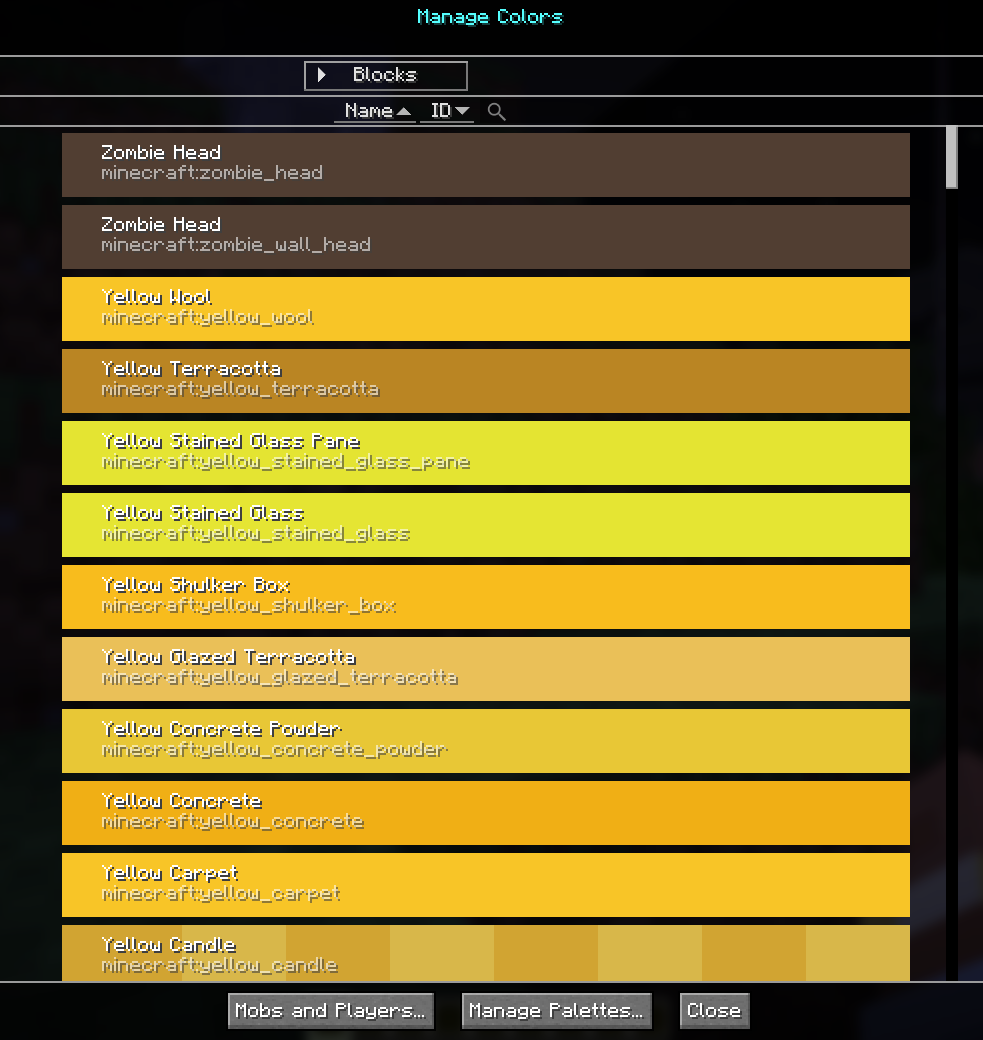
Opening the Color Palette
Open the fullscreen map (default key J) and click the Color Palette
button in the action bar.
This opens the Manage Colors screen. From there, the Manage Palettes button (bottom of the screen) opens the higher-level palette management screen described in the Managing Palettes section below.
Manage Colors
The Manage Colors screen lists every block, biome, or entity color the map renderer can use. You can filter the list, edit individual colors, and bulk-edit the entries shown.
Modes
| Mode | Shows |
|---|---|
| Blocks | Every block (and block state) JourneyMap has a color for. Block colors drive the base map render. |
| Biomes | Per-biome tints used by foliage, grass, water, and fog overlays. |
Mobs and Players
The Mobs and Players... button opens a focused editor for the non-block entries: Hostile Dot/Label, Passive Dot/Label, Pet Dot/Label, Player Dot/Label, Villager Dot/Label, and the Self Arrow. Use this to change the colors used for entity dots and name labels on the map.
Filters
- Search - free-text filter against the visible list.
- Domain - filter by mod ID, or pick
All,Resource Packs, orModsto widen or narrow the scope. - Palette - choose the palette to edit (see Domain Scopes below).
- Sort - sort by Name or ID, ascending or descending.
Editing a single entry
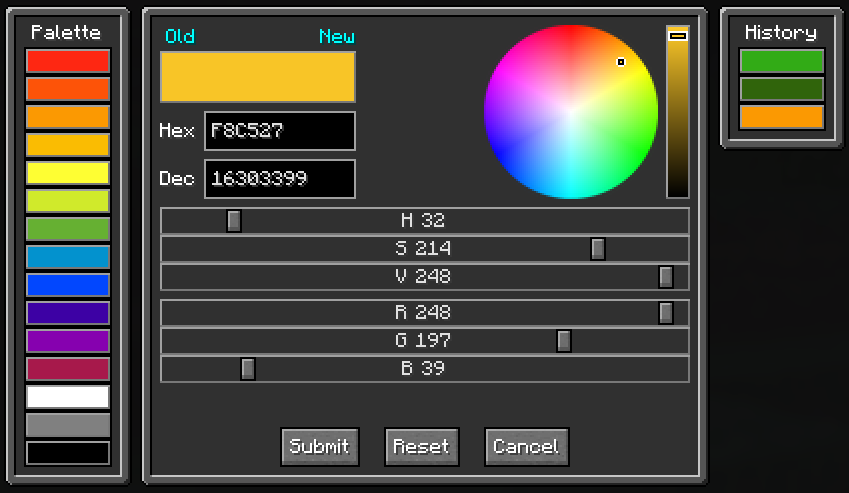
Click Edit next to any entry to open the color picker for that entry. For blocks, the picker lets you set the color for each block state. For biomes, you set the foliage, grass, water, and fog tints independently. Save back to either the Global or the World palette.
Domain Scopes
JourneyMap stores up to two palettes:
| Palette | Scope |
|---|---|
| Global | Applied across every world you open with JourneyMap. |
| World | Applied only to the currently loaded singleplayer world or server save. World palette overrides Global where both define a color. |
The active scope is shown in the palette dropdown. Saving an edit to the World palette only affects the current world; saving to Global applies it everywhere.
Managing Palettes
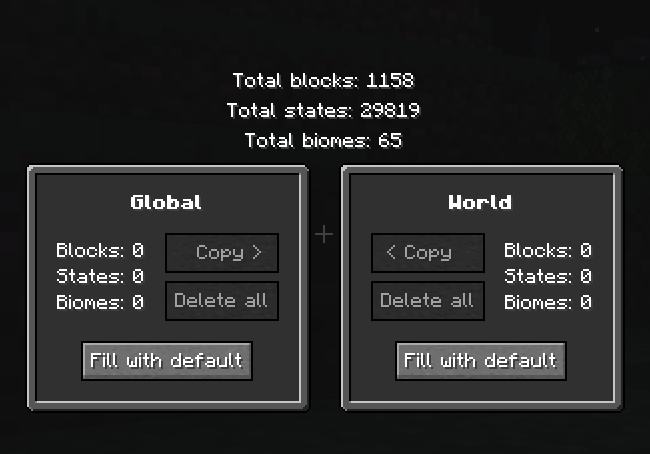
The Manage Palettes screen (reached via the button on Manage Colors) shows the Global and World palettes side by side, with the total block / state / biome counts each one defines.
Actions per palette
| Action | Effect |
|---|---|
| Delete all | Removes every color from that palette (asks for confirmation). |
| Fill with default | Copies any missing colors from the JourneyMap default palette into this palette. |
| Copy > | Copy from Global to World, with a sub-mode choice (all and replace, existing only, non-existing only). |
| < Copy | Copy from World to Global, same sub-mode choices. |
Copy modes
When copying between palettes, you choose how existing entries are treated:
- Copy all and replace existing - overwrite every entry in the destination with the source's value.
- Copy and replace only existing ones - update destination entries whose key already exists; do not add new keys.
- Copy only non-existing ones - fill in missing keys only; never change a destination entry that already has a value.
Storage
Palettes are saved on disk as JourneyMap color palette files. The World palette lives alongside the world's JourneyMap data; the Global palette lives in the top-level JourneyMap config folder. If a palette file is corrupted, JourneyMap surfaces an error rather than silently discarding your colors.